> For the complete documentation index, see [llms.txt](https://imbrace.gitbook.io/imbrace-documentation/llms.txt). Markdown versions of documentation pages are available by appending `.md` to page URLs; this page is available as [Markdown](https://imbrace.gitbook.io/imbrace-documentation/governance/audit-log.md).
# Audit Log
The **Audit Log** records user and system activity across the platform, such as logins, file uploads, channel changes, and changes to Data Board records. Use it to track changes, investigate issues, and support compliance reviews.
### **Viewing Activity**
1. Click the **Audit Log** tab.
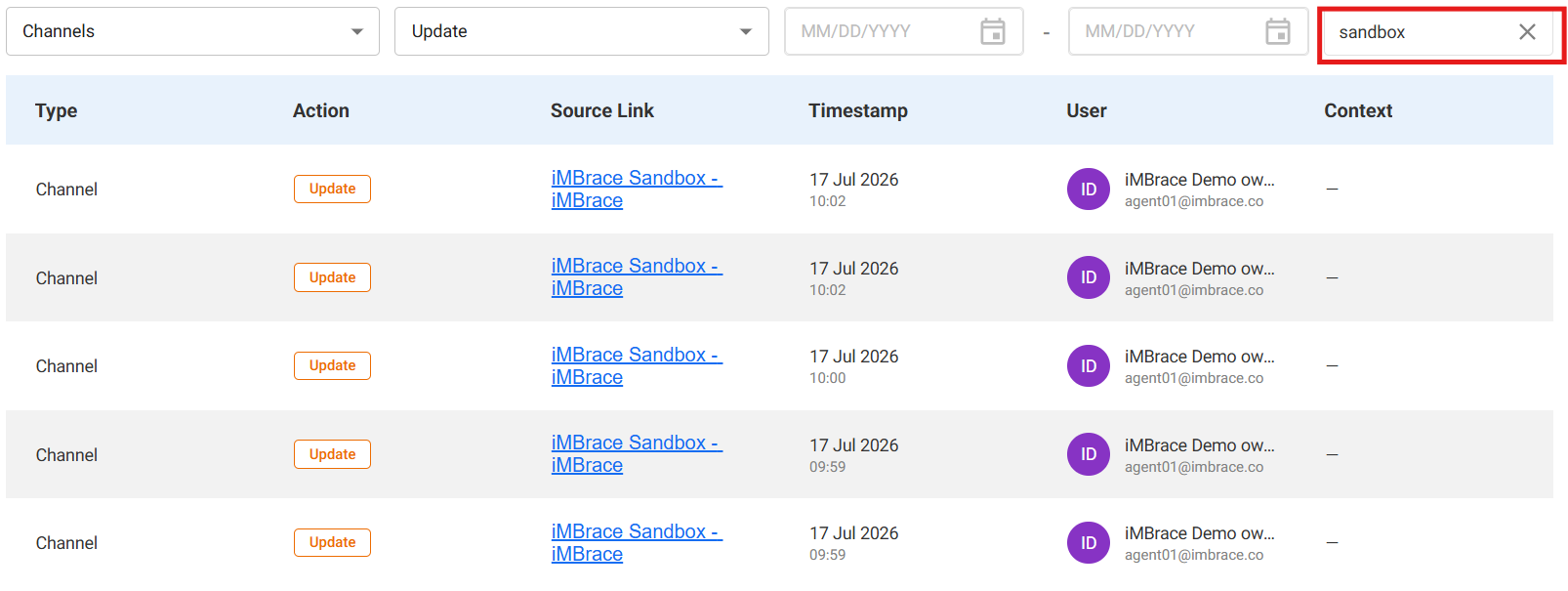
2. Review the list of activities displayed in the table. The most recent activity is shown first. For each entry, the following information is available:
* **Type:** The area of the platform where the activity occurred.
* **Action:** The action performed.
* **Source Link:** A description of the activity with links to the affected item, for example **Updated a record** on board **Facebook Posts**. Click a link to open the related record or board.
* **Timestamp:** The date and time the activity occurred.
* **User:** The user who performed the action. A generic user icon without a name indicates a system or automated action, such as an update made by a workflow or integration.
* **Context:** Additional details about the activity, such as the browser and operating system used to log in.
### **Filtering by Activity Type**
1. Click the **All activity** drop-down. Select one of the following activity, and related records will be displayed in the table.
### **Filtering by Action**
1. Click the **All Actions** drop-down. Select any option to display the related records.
### **Filtering by Date Range**
1. Set the time period to show only activity within the selected data range.
### **Searching the Audit Log**
1. Click the **Search** field. Enter a keyword, such as a board name or record detail. The table updates to show matching entries.
> **Tip:** Combine filters to narrow results quickly. For example, select **Databoard** and **Delete** with a date range to find records deleted during a specific period.