# Zendesk

[Zendesk](https://www.zendesk.com/) is a support ticketing system, designed to help track, prioritize, and solve customer support interactions. More than just a help desk, Zendesk Support helps nurture customer relationships with personalized, responsive support across any channel.

## **Account integration using OAuth** <a href="#sr0goz75q9c7" id="sr0goz75q9c7"></a>

To begin, you will need:

* An [Zendesk](https://zendesk.com/) account.

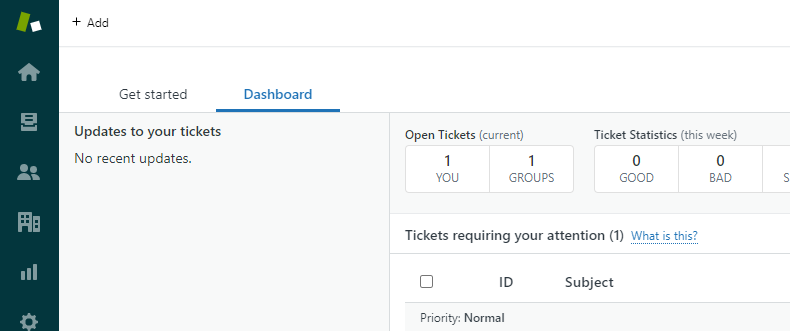
**STEP 1:** Open your Zendesk dashboard.

<figure><img src="https://3400071099-files.gitbook.io/~/files/v0/b/gitbook-x-prod.appspot.com/o/spaces%2FypCKq44Psaly6khgrY7x%2Fuploads%2FXF1K4Mj6vZlZXN8aoEy0%2F0.png?alt=media" alt=""><figcaption></figcaption></figure>

**STEP 2:** Click on the squares icon on the right and click **\[Admin Center]**.

![](https://3400071099-files.gitbook.io/~/files/v0/b/gitbook-x-prod.appspot.com/o/spaces%2FypCKq44Psaly6khgrY7x%2Fuploads%2Fw20cUoaw1qaeJVMnRJpt%2F1.png?alt=media)

**STEP 3:** Click on **\[Zendesk API]** under the **Apps and integration** section in the sidebar.

![](https://3400071099-files.gitbook.io/~/files/v0/b/gitbook-x-prod.appspot.com/o/spaces%2FypCKq44Psaly6khgrY7x%2Fuploads%2FXFyOSyMKiFJtgLlUhzAx%2F2.png?alt=media)

**STEP 4:** Click on the **\[OAuth Clients]** tab.

![](https://3400071099-files.gitbook.io/~/files/v0/b/gitbook-x-prod.appspot.com/o/spaces%2FypCKq44Psaly6khgrY7x%2Fuploads%2FeCGurJVrSOidbgi9ClFu%2F3.png?alt=media)

**STEP 5:** Click on the **\[Add OAuth client]** button.

![](https://3400071099-files.gitbook.io/~/files/v0/b/gitbook-x-prod.appspot.com/o/spaces%2FypCKq44Psaly6khgrY7x%2Fuploads%2FEyctpwy7ivJINc59llq0%2F4.png?alt=media)

**STEP 6:** Enter the client name in the **Client Name** field.

![](https://3400071099-files.gitbook.io/~/files/v0/b/gitbook-x-prod.appspot.com/o/spaces%2FypCKq44Psaly6khgrY7x%2Fuploads%2F6S8EdS9xKvb8dDzZBS0h%2F5.png?alt=media)

**STEP 7:** Enter a description in the **Description** field.

![](https://3400071099-files.gitbook.io/~/files/v0/b/gitbook-x-prod.appspot.com/o/spaces%2FypCKq44Psaly6khgrY7x%2Fuploads%2FQcJtJzZvH856s4Ltz1Ok%2F6.png?alt=media)

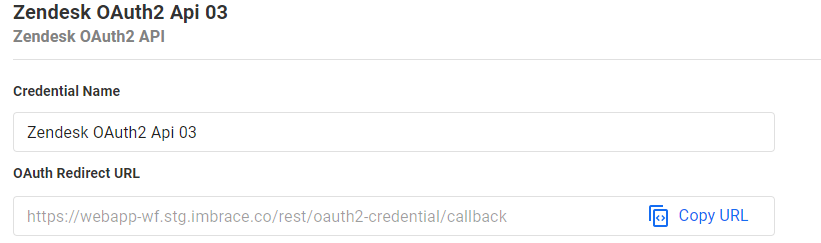
**STEP 8:** In iMBRAC&#x45;**,** copy the **OAuth Callback URL** provided in the **Zendesk OAuth2 API** credentials.

<figure><img src="https://3400071099-files.gitbook.io/~/files/v0/b/gitbook-x-prod.appspot.com/o/spaces%2FypCKq44Psaly6khgrY7x%2Fuploads%2FfI3brD6pGCDPEQSXlQcc%2F7.png?alt=media" alt=""><figcaption></figcaption></figure>

**STEP 9:** Paste it in the **Redirect URLs** field on the Zendesk API credentials page.

![](https://3400071099-files.gitbook.io/~/files/v0/b/gitbook-x-prod.appspot.com/o/spaces%2FypCKq44Psaly6khgrY7x%2Fuploads%2FwdJKgDCZIOskkfPV07AO%2F8.png?alt=media)

**STEP 10:** Click on the **\[Save]** button.

![](https://3400071099-files.gitbook.io/~/files/v0/b/gitbook-x-prod.appspot.com/o/spaces%2FypCKq44Psaly6khgrY7x%2Fuploads%2FdcOzyiUw03HSQtmrtUgj%2F9.png?alt=media)

**STEP 11:** Click on the **\[OK]** button on the **Please store the secret that will appear** pop-up.

![](https://3400071099-files.gitbook.io/~/files/v0/b/gitbook-x-prod.appspot.com/o/spaces%2FypCKq44Psaly6khgrY7x%2Fuploads%2FY3RUVIynVZoM6x68BZgH%2F10.png?alt=media)

**STEP 12:** Scroll down to the **Secret** section and copy the displayed **Secret**.

![](https://3400071099-files.gitbook.io/~/files/v0/b/gitbook-x-prod.appspot.com/o/spaces%2FypCKq44Psaly6khgrY7x%2Fuploads%2FB4rmPmC6qyIz6h07sRYK%2F11.png?alt=media)

**STEP 13:** In iMBRACE, paste this secret in the **Client Secret** field in the Zendesk OAuth2 API credentials.

![](https://3400071099-files.gitbook.io/~/files/v0/b/gitbook-x-prod.appspot.com/o/spaces%2FypCKq44Psaly6khgrY7x%2Fuploads%2FGE3jLKC5p1V2SF4uuO8g%2F12.png?alt=media)

**STEP 14:** Copy the **Unique identifier** from the Zendesk API credentials page.

![](https://3400071099-files.gitbook.io/~/files/v0/b/gitbook-x-prod.appspot.com/o/spaces%2FypCKq44Psaly6khgrY7x%2Fuploads%2FKVQ8xLKEGc0VM5Rd14fh%2F13.png?alt=media)

**STEP 15:** In iMBRAC&#x45;**,** paste it in the **Client ID** field in the Zendesk OAuth2 API credentials.

![](https://3400071099-files.gitbook.io/~/files/v0/b/gitbook-x-prod.appspot.com/o/spaces%2FypCKq44Psaly6khgrY7x%2Fuploads%2F6N3KaFHSE7ctZabBE3ZZ%2F14.png?alt=media)

**STEP 16:** In iMBRACE, enter your Zendesk subdomain in the **Subdomain** field in the Zendesk OAuth2 API credentials.

![](https://3400071099-files.gitbook.io/~/files/v0/b/gitbook-x-prod.appspot.com/o/spaces%2FypCKq44Psaly6khgrY7x%2Fuploads%2F8k8xRUZy6I6lfWIIgP2w%2F15.png?alt=media)

**STEP 17:** In iMBRACE, enter the name for your credentials in the **Credentials Name** field in the Zendesk OAuth2 API credentials.

![](https://3400071099-files.gitbook.io/~/files/v0/b/gitbook-x-prod.appspot.com/o/spaces%2FypCKq44Psaly6khgrY7x%2Fuploads%2FlUxIQxNBV7FrlIHc08A0%2F16.png?alt=media)

**STEP 18:** Click on the **\[Connect]** button in the OAuth section to connect a Zendesk account to iMBRACE.

![](https://3400071099-files.gitbook.io/~/files/v0/b/gitbook-x-prod.appspot.com/o/spaces%2FypCKq44Psaly6khgrY7x%2Fuploads%2FZ6NV9AgWUYnmA89OuULA%2F17.png?alt=media)

**DONE:** The credential can then be used for Zendesk nodes.

## **Account integration using Access Token** <a href="#id-5i6anryr9949" id="id-5i6anryr9949"></a>

To begin, you will need:

* An [Zendesk](https://zendesk.com/) account.

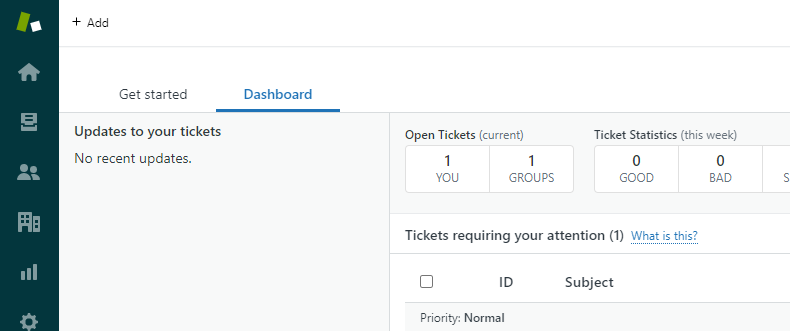
**STEP 1:** Open your Zendesk dashboard.

<figure><img src="https://3400071099-files.gitbook.io/~/files/v0/b/gitbook-x-prod.appspot.com/o/spaces%2FypCKq44Psaly6khgrY7x%2Fuploads%2F10nx16HoX71VpOzkzN3n%2F18.png?alt=media" alt=""><figcaption></figcaption></figure>

**STEP 2:** Click on the squares icon on the right and click **\[Admin Center]**.

![](https://3400071099-files.gitbook.io/~/files/v0/b/gitbook-x-prod.appspot.com/o/spaces%2FypCKq44Psaly6khgrY7x%2Fuploads%2FYlQvyiu8wrGGtEY17hlo%2F19.png?alt=media)

**STEP 3:** Click on **\[Zendesk API]** under the **Apps and integration** section in the sidebar.

![](https://3400071099-files.gitbook.io/~/files/v0/b/gitbook-x-prod.appspot.com/o/spaces%2FypCKq44Psaly6khgrY7x%2Fuploads%2F4vdzyD2CVlEPqo3uMOMj%2F20.png?alt=media)

**STEP 4:** If **Token access** is disabled, click on the switch to toggle it to **Enabled**.

<figure><img src="https://3400071099-files.gitbook.io/~/files/v0/b/gitbook-x-prod.appspot.com/o/spaces%2FypCKq44Psaly6khgrY7x%2Fuploads%2FSGYIlOxV8izEGhZd7PVN%2Faccesstokenstep4.png?alt=media&#x26;token=9aa49549-60c7-4502-8f0f-498340bbe0df" alt=""><figcaption></figcaption></figure>

**STEP 5:** Click on the **\[Add API token]** button.

<figure><img src="https://3400071099-files.gitbook.io/~/files/v0/b/gitbook-x-prod.appspot.com/o/spaces%2FypCKq44Psaly6khgrY7x%2Fuploads%2FIyQaoPCuANZJZSwGcgB2%2Faccesstokenstep5.png?alt=media&#x26;token=12819068-11dc-45d4-8a4f-5154ce8d499d" alt=""><figcaption></figcaption></figure>

**STEP 6:** Enter a description in the **API token description** field.

<figure><img src="https://3400071099-files.gitbook.io/~/files/v0/b/gitbook-x-prod.appspot.com/o/spaces%2FypCKq44Psaly6khgrY7x%2Fuploads%2FlZ2BciPYs5hLwmtAyLz0%2Faccesstokenstep6.png?alt=media&#x26;token=f0371ccb-9e33-410a-af89-015497570d9f" alt=""><figcaption></figcaption></figure>

**STEP 7:** Click on the **\[Copy]** button to copy the API token.

<figure><img src="https://3400071099-files.gitbook.io/~/files/v0/b/gitbook-x-prod.appspot.com/o/spaces%2FypCKq44Psaly6khgrY7x%2Fuploads%2FfVPJXskl6jaEahhtslfp%2Faccesstokenstep7.png?alt=media&#x26;token=916634dd-6c14-4e1c-820f-27aec0a85667" alt=""><figcaption></figcaption></figure>

**STEP 8:** Click on the **\[Save]** button.

<figure><img src="https://3400071099-files.gitbook.io/~/files/v0/b/gitbook-x-prod.appspot.com/o/spaces%2FypCKq44Psaly6khgrY7x%2Fuploads%2FdrZY8XkstrHOshYPxepC%2Faccesstokenstep8.png?alt=media&#x26;token=527a19c7-c299-425b-81f1-7df00658001e" alt=""><figcaption></figcaption></figure>

**STEP 9:** In iMBRACE, enter the name for your credentials in the **Credentials Name** field in the 'Zendesk API' credentials.

<figure><img src="https://3400071099-files.gitbook.io/~/files/v0/b/gitbook-x-prod.appspot.com/o/spaces%2FypCKq44Psaly6khgrY7x%2Fuploads%2F7C1HfMrq7QQUIE8cEtb7%2Faccesstokenstep9.png?alt=media&#x26;token=ffbc889e-8419-4b2c-ab01-40d37a84d404" alt=""><figcaption></figcaption></figure>

**STEP 10:** Enter your Zendesk subdomain in the **Subdomain** field.

<figure><img src="https://3400071099-files.gitbook.io/~/files/v0/b/gitbook-x-prod.appspot.com/o/spaces%2FypCKq44Psaly6khgrY7x%2Fuploads%2FTEZJnU9XppyFmusa8Idz%2Faccesstokenstep10.png?alt=media&#x26;token=80a4c6be-ede5-4054-af94-624653e26a01" alt=""><figcaption></figcaption></figure>

**STEP 11:** Enter your Zendesk email address in the **Email** field.

<figure><img src="https://3400071099-files.gitbook.io/~/files/v0/b/gitbook-x-prod.appspot.com/o/spaces%2FypCKq44Psaly6khgrY7x%2Fuploads%2FeoqnSwUAavd2vPkU7QHR%2FZendesk_Token_11.png?alt=media&#x26;token=7936c405-6caf-4897-abfd-aba6708d9a0a" alt=""><figcaption></figcaption></figure>

**STEP 12:** In iMBRACE, paste the **API token** in the **API Token** field.

<figure><img src="https://3400071099-files.gitbook.io/~/files/v0/b/gitbook-x-prod.appspot.com/o/spaces%2FypCKq44Psaly6khgrY7x%2Fuploads%2Fj5FN9m9qTiXcauSXvDjz%2Faccesstokenstep12.png?alt=media&#x26;token=fdb540b7-35e0-460b-92ce-1cf14b8a850e" alt=""><figcaption></figcaption></figure>

**STEP 13:** Click on the **\[Create]** button to save your credentials.

<figure><img src="https://3400071099-files.gitbook.io/~/files/v0/b/gitbook-x-prod.appspot.com/o/spaces%2FypCKq44Psaly6khgrY7x%2Fuploads%2FMvq3KtNY5XZQnZ8yfuCR%2FZendesk_Token_13.png?alt=media&#x26;token=494b1ed7-02eb-4d2c-993e-4fe6b6635738" alt=""><figcaption></figcaption></figure>

**DONE:** The credential can then be used for Zendesk nodes.