> For the complete documentation index, see [llms.txt](https://imbrace.gitbook.io/imbrace-documentation/llms.txt). Markdown versions of documentation pages are available by appending `.md` to page URLs; this page is available as [Markdown](https://imbrace.gitbook.io/imbrace-documentation/onboarding-guide/campaign-qr-code.md).
# Campaign QR Code
Campaign QR Code Feature
### What is Campaign QR Code?
* **Campaign QR Code** is a powerful feature that branched out from the **iMBrace** that allows the users to **track and analyze code scans in real-time**. Utilize iMBrace Intelligence Campaign Management to monitor QR code ROI, tracking both code scans and links clicked by your audience.
### What is a Touchpoint?
* A **Touchpoint** is a brand's message or method of reaching its target market, fostering engagement and creating a favorable impression on prospective customers.
{% hint style="info" %}
**To create and manage your marketing campaigns, follow the steps below:**
{% endhint %}
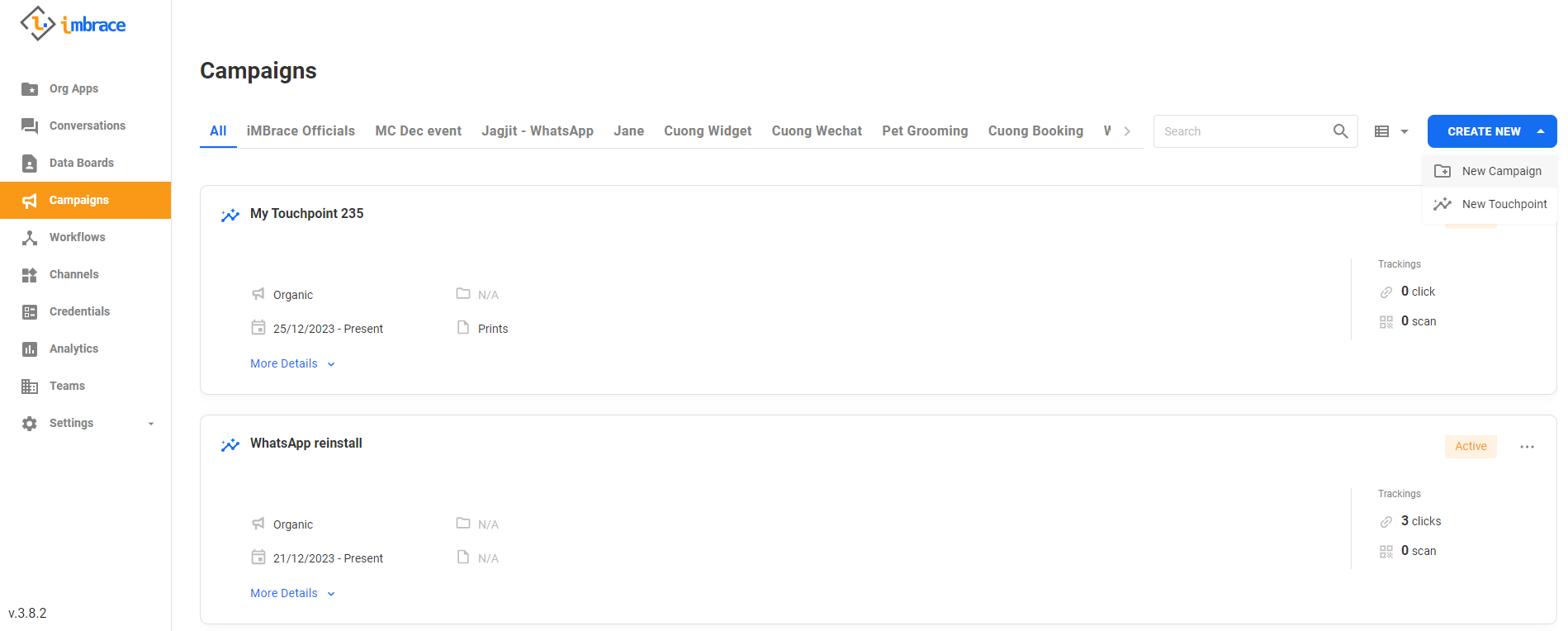
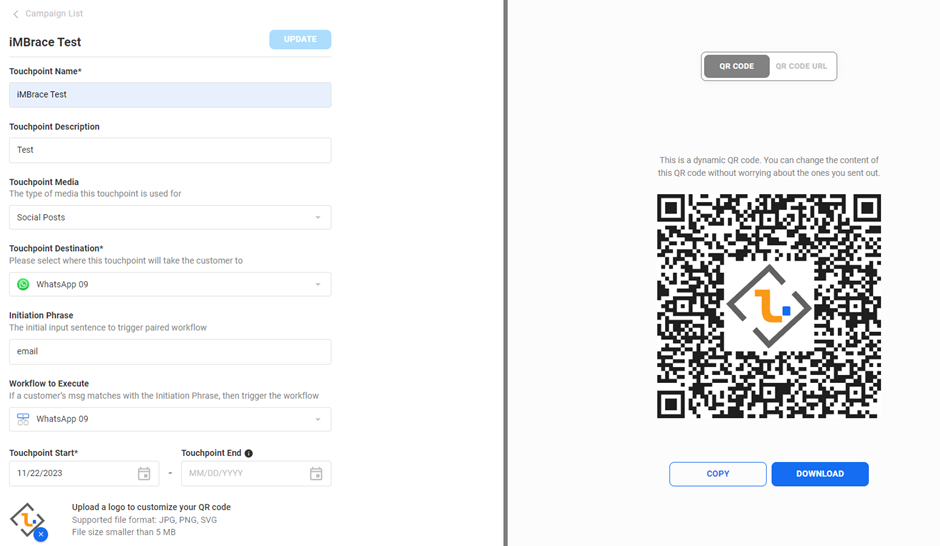
**Step 1:** Go to the "**Campaign**" section in the left hand side bar menu, and click the button "**Create New**" located on the top right hand side. After the dropdown menu appears, Click on "**New Campaign**".
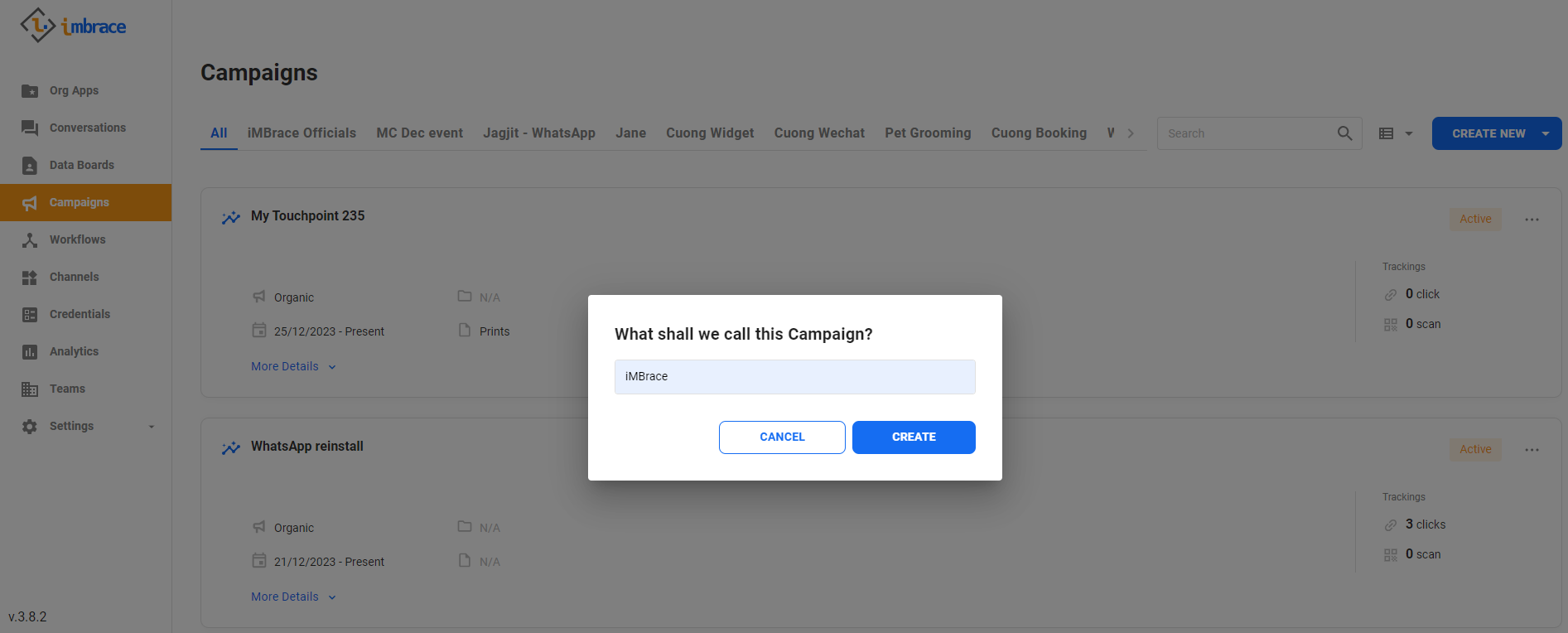
**Step 2:** Type in "**Campaign Name**".
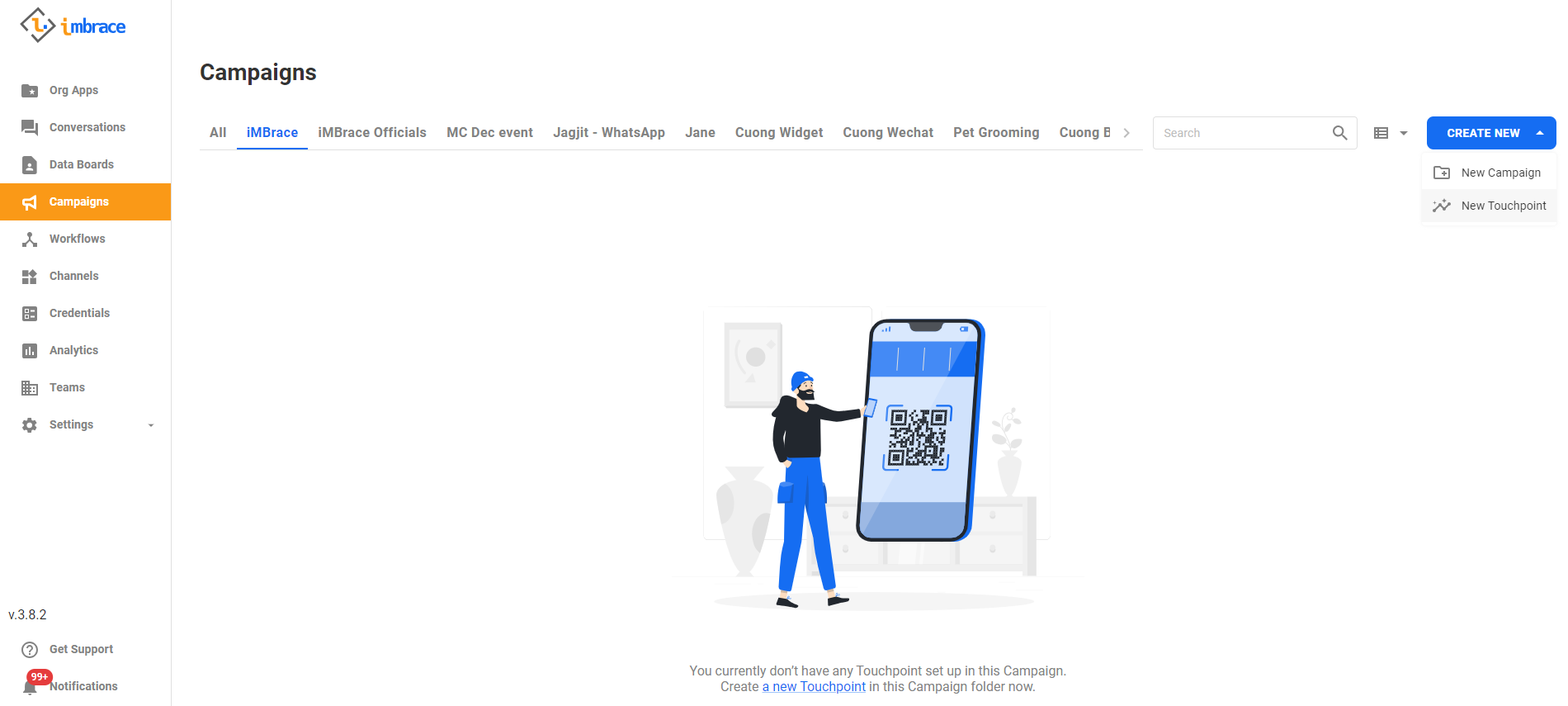
**Step 3:** Click on "**CREATE NEW**" again located in the Campaign section. After the dropdown menu appears, Click on "**New Touchpoint**".
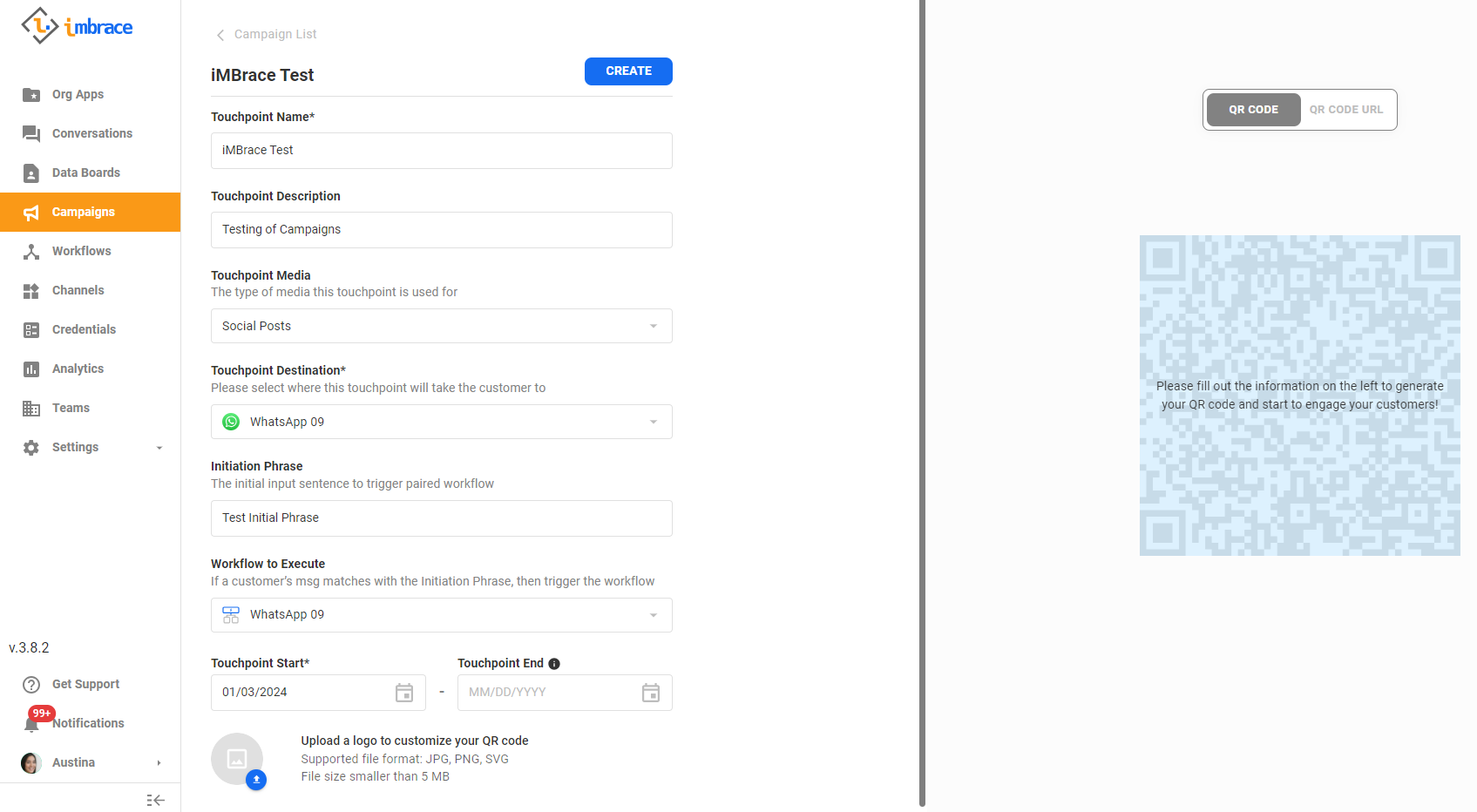
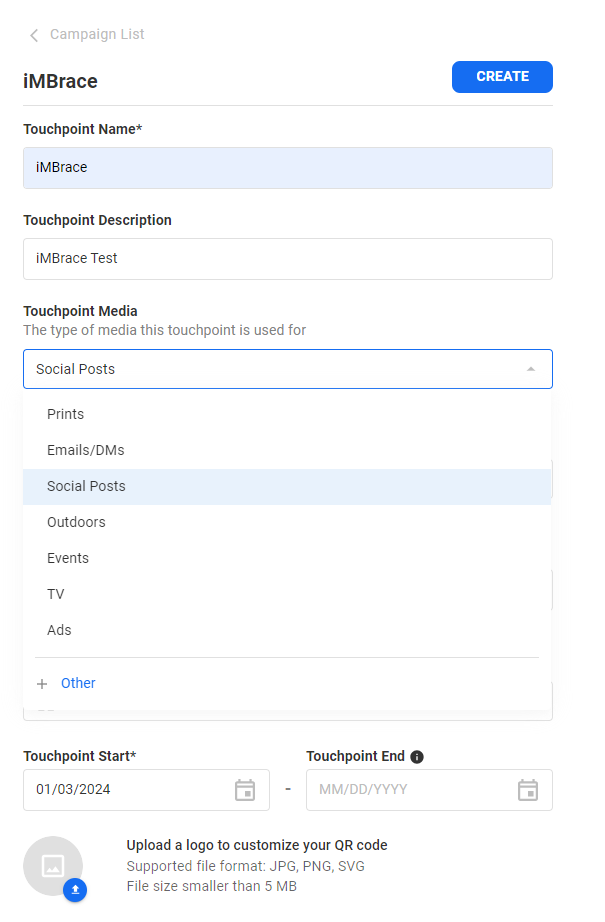
**Step 4:** Type in “**Touchpoint Name**” and “**Touchpoint Description**”.
**Step 5:** Select the type of media in “**Touchpoint Media**”.
* **Touchpoint Media** is the type of media this Touchpoint is used for.
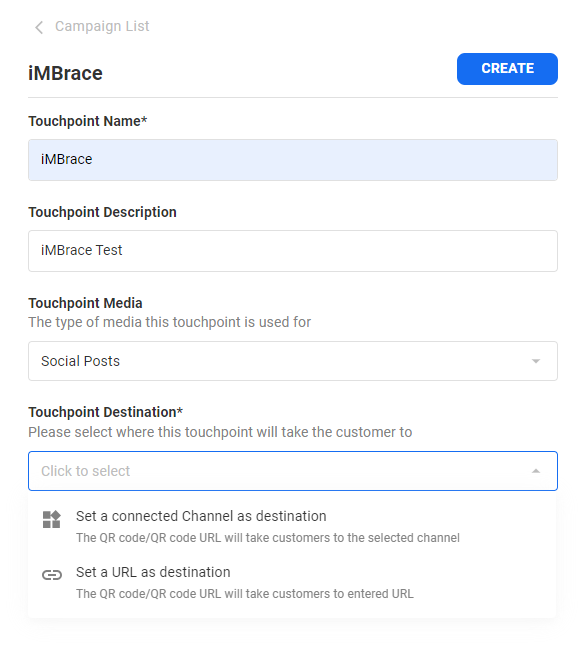
**Step 6:** Select where this **Touchpoint** will lead the customer to in “**Touchpoint Destination**”.
* **Touchpoint Destination** is where this **Touchpoint** will take the customer to (Eg: Website/Channels).
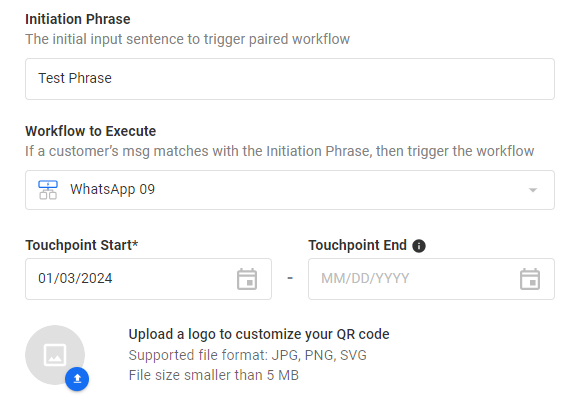
**Step 7:** Type in “**Initiation Phrase**”.
* **Initiation Phrase** is the phrase that the users need to send out in your selected Touchpoint destination above to trigger the workflow.
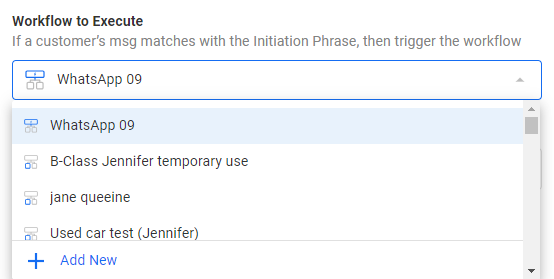
**Step 8:** Select “**Workflow to Execute**”.
* Click **Add New** to create a new workflow if no workflow has been created.
**Step 9:** Upload a logo to customize your **QR Code** and click **CREATE** to create the QR Code.
* You can customize your **QR Code** appearance by uploading your logo file smaller than 5 MB in JPG/PNG/SVG format.
{% hint style="info" %}
You will be able to Download the **QR CODE** or copy the **QR CODE URL**.
{% endhint %}